End-user workflows.
Last updated
End-user workflows
The pages above configure the system. This section is the operator's view of how analysts and reviewers actually use it day-to-day — the editor, scheduled queries, and the bulk-approval review queue that landed in v1.1.
How does a query get from submitted to executed?
An analyst writes a query in the editor and submits it. AccessFlow parses it, scores its risk with the configured AI provider, and queues it for the reviewers named by the datasource’s review plan. Once approved, AccessFlow executes it over its own pooled connection, applies masking, and returns the rows.
Submitting a query
/editor hosts the SQL editor: dialect-aware syntax highlighting, schema
autocomplete fed by /datasources/<id>/schema, a debounced AI
analyze pass, and an in-pane review-plan summary. The submitter picks a datasource,
writes SQL, fills in a justification, and submits — at which point the workflow
takes over.
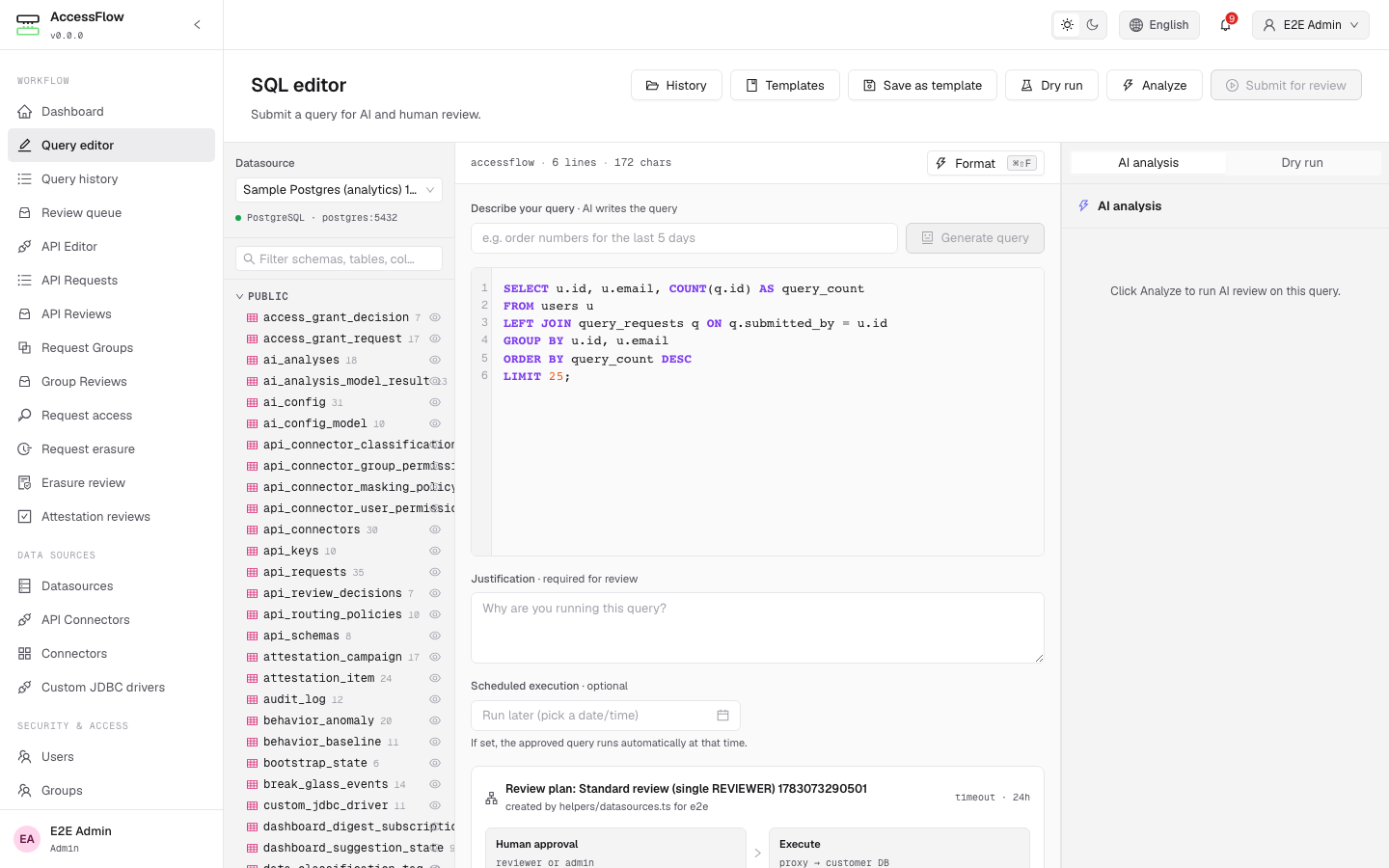
/editor — schema browser, SQL pane, justification, scheduled-execution row, and AI analysis side panel.Drafting queries from natural language
When a datasource has text-to-query enabled and an AI configuration bound (see Datasources → Configuration), the editor shows a Describe your query bar above the query pane. Type a plain-language request (e.g. "order numbers for the last 5 days"), click Generate query, and the draft is written into the editor for you to review and edit — in the datasource engine's native query language (SQL for relational engines, plus MongoDB shell/JSON, Cypher, CQL, the Elasticsearch Query DSL, redis-cli, SQL++, and PartiQL for the NoSQL engines; the editor mounts the matching syntax automatically). The generated query is never executed directly — it still flows through the full AI analysis and review pipeline like any hand-written submission.
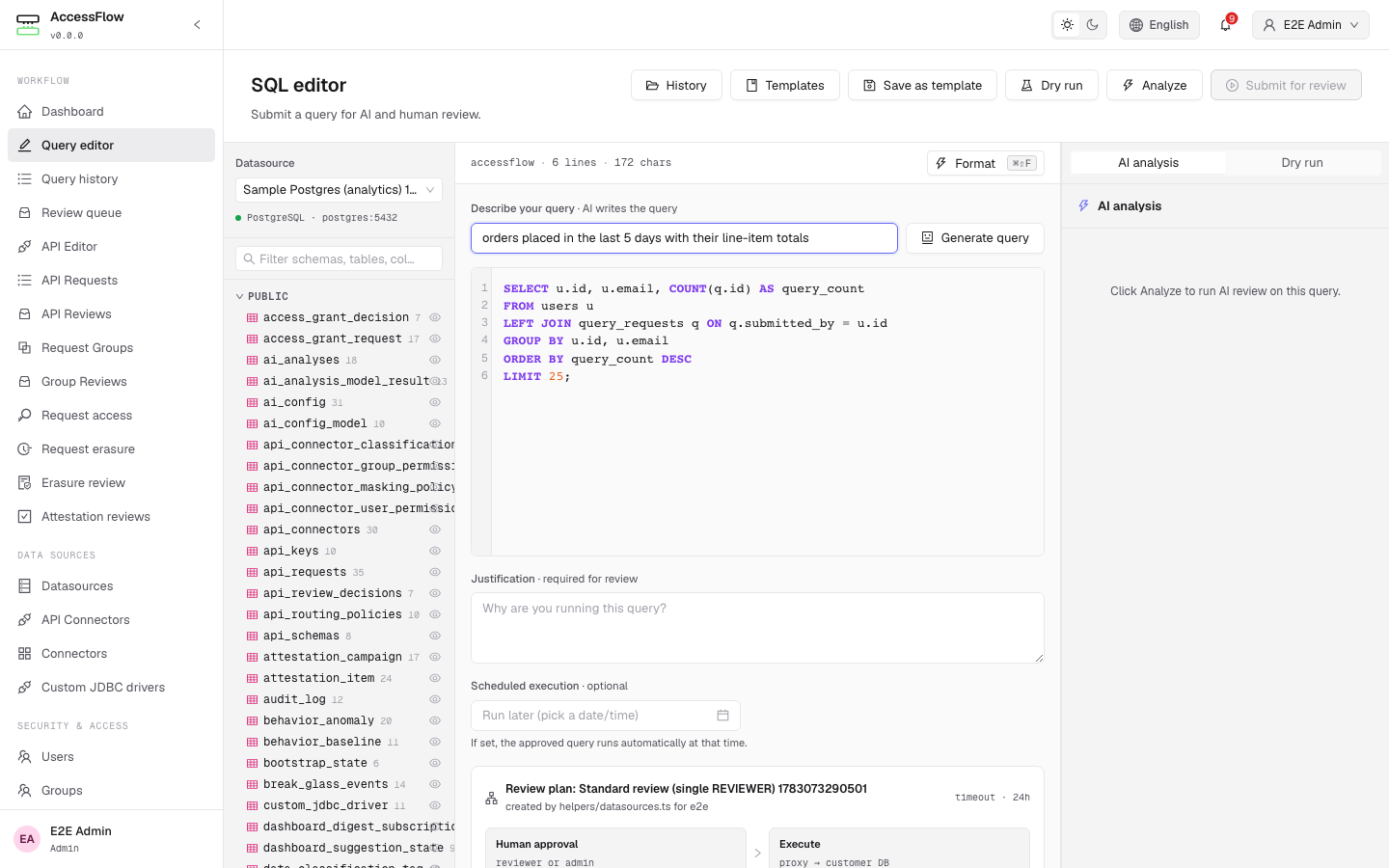
/editor → Describe your query. AI drafts the query; the draft still goes through the normal review pipeline.Query templates library
The editor's toolbar has a Templates drawer button and a
Save as template shortcut. Saved templates are scoped to your
organisation and have two visibilities: Private (only you can see and load
them) or Team (every user in the org can read; only the owner can edit
or delete). Templates can optionally be pinned to a datasource so they surface
with a "pinned to current datasource" badge when that datasource is selected.
Template bodies can include :placeholder tokens — when you load a
template, AccessFlow prompts you for each placeholder value and substitutes
them client-side. Submission still flows through the standard AI analysis and
review pipeline; templates are a pure save / load surface, never a bypass.
Every save records an immutable version. Open a template's History tab to see how it evolved — pick any two revisions for a side-by-side Git-style diff, and restore a prior version when an edit went wrong. Restoring creates a new version rather than discarding history, so the full trail is always preserved.
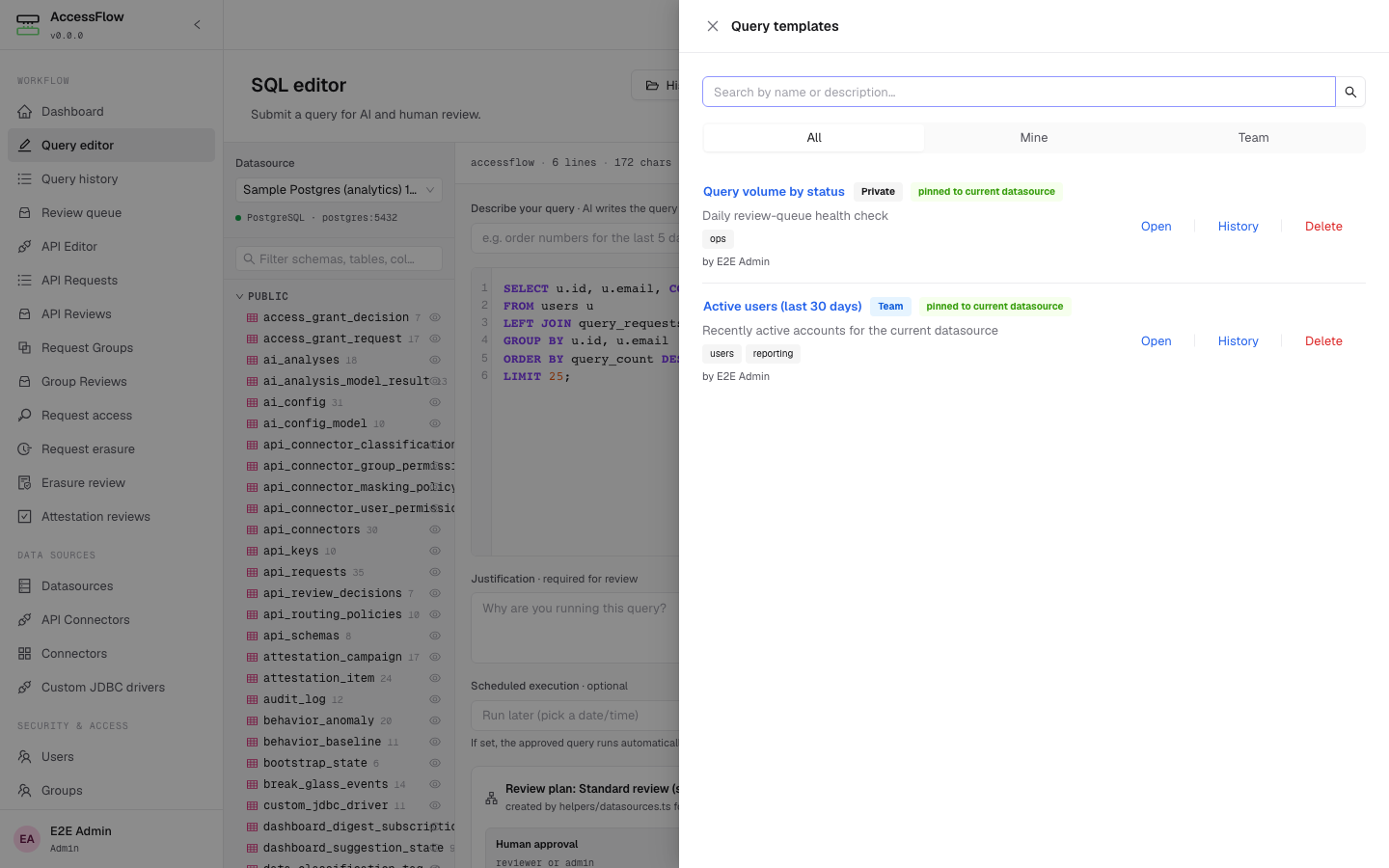
/editor → Templates — load a saved query (Private or Team), with :placeholder prompts on open.Tracking submitted queries
/queries (labelled Query history in the sidebar) lists every
query the current user has submitted or has read access to. Filter by status, risk,
datasource, or date range, and export the visible rows as CSV. Click a row to open
/queries/<id> for the full timeline, AI analysis, decisions, and
(when executed) the result preview.
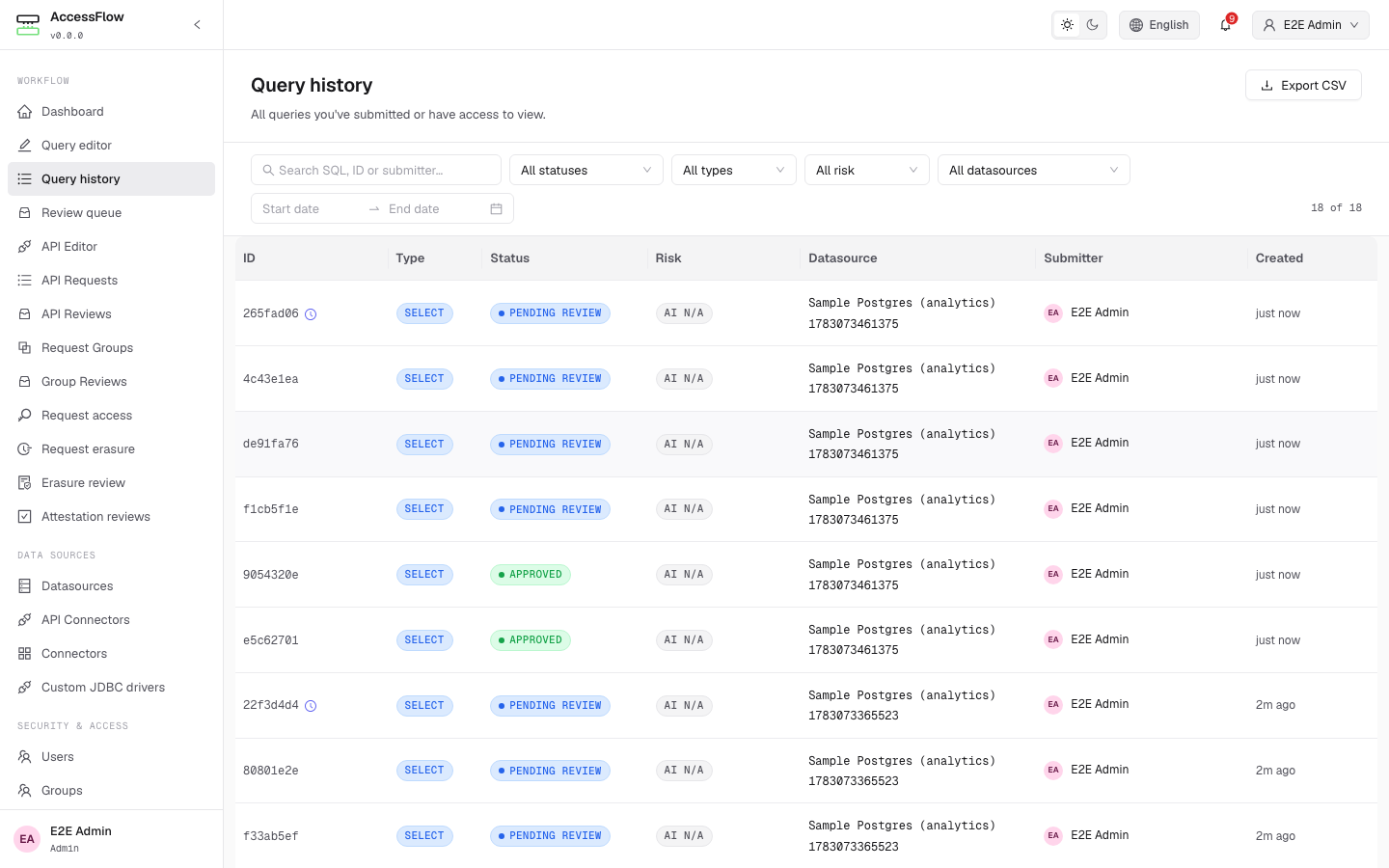
/queries — submitter view of every query, with Export CSV.Scheduling a query
Submitters can pick a Scheduled execution datetime instead of running
immediately. The query still goes through review; once approved, it stays in
APPROVED until scheduled_for arrives, at which point
ScheduledQueryRunJob (cadence
ACCESSFLOW_WORKFLOW_SCHEDULED_RUN_POLL_INTERVAL, default
PT1M) triggers execution. The submitter can cancel an
APPROVED scheduled run any time before it fires.
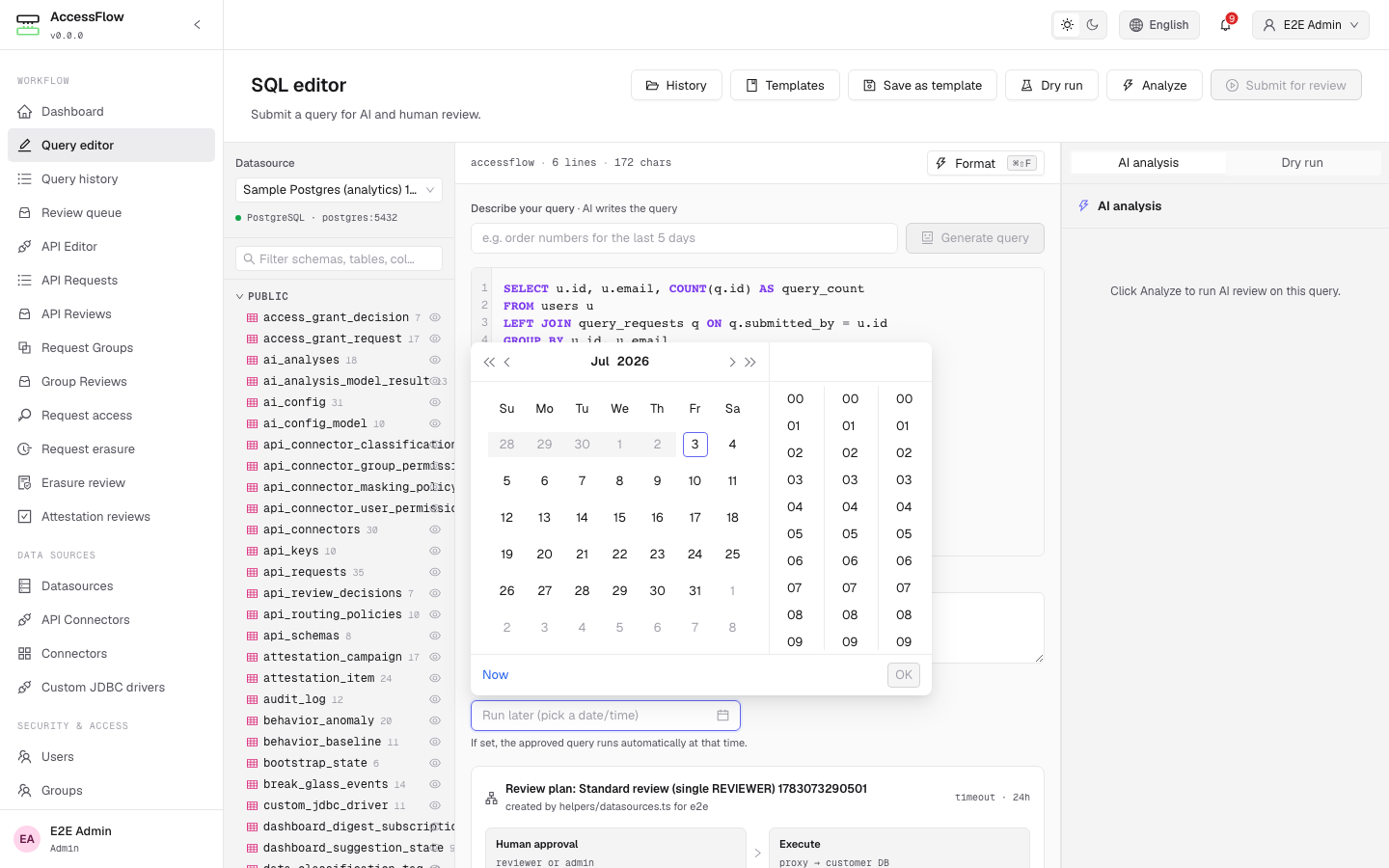
/editor → Scheduled execution row → date picker. Leave blank for immediate execution.Request chaining & grouping
A single real task often spans several steps across systems — a schema change on
PostgreSQL, a follow-up update on MongoDB, then a REST call downstream. The
group builder at /request-groups/new bundles those steps
into one grouped request that is reviewed and approved as a single
element, then executed as an ordered sequence. Add steps — each a
query against a datasource or an API call against a
governed connector — drag-reorder them, and watch a per-step AI risk preview plus an
aggregate risk badge. You can only add a member targeting a datasource / connector you're
permitted to use; a break-glass group requires can_break_glass on
every member target.
The group is reviewed as one element: the required approvers are the union
across all member plans, and the group reaches APPROVED only when
every member plan's per-stage approval requirement is satisfied — no
member's policy is weakened by bundling, and you can never approve your own group.
Reviewers see it as one expandable element in their queue. On execute, members run in
sequence_order; on the first failure (with continue-on-error off) the
run stops, the remaining members are SKIPPED, and the group becomes
PARTIALLY_EXECUTED (or FAILED if the first member fails). With
continue-on-error on, all members run and the group is EXECUTED with
mixed per-member outcomes.
There is no distributed rollback. An approved group is not
atomic — already-applied members stay (you cannot roll back a committed Postgres DDL
because a later Mongo write failed). The detail page at /request-groups/:id
shows ordered step-by-step progress (running / done / failed / skipped) live over the
WebSocket, and each member records its own snapshot + audit row alongside the group-level
audit.
Operator env vars. A scheduled group runs at its
scheduled_for time via ScheduledGroupRunJob (cadence
ACCESSFLOW_REQUESTGROUPS_RUN_POLL_INTERVAL, default PT1M); a
group left awaiting review past the review timeout is auto-rejected to
TIMED_OUT by GroupTimeoutJob (cadence
ACCESSFLOW_REQUESTGROUPS_TIMEOUT_POLL_INTERVAL, default PT5M).
Both are clustered-safe (ShedLock).
Reviewing & bulk approval
Reviewers land on /reviews for the queue assigned to them. Each row
shows the query id, classification, AI risk, datasource, submitter, and elapsed
time. Three tabs scope the view: Assigned to you, All pending
(visible to anyone the plan grants approver eligibility), and Recently decided.
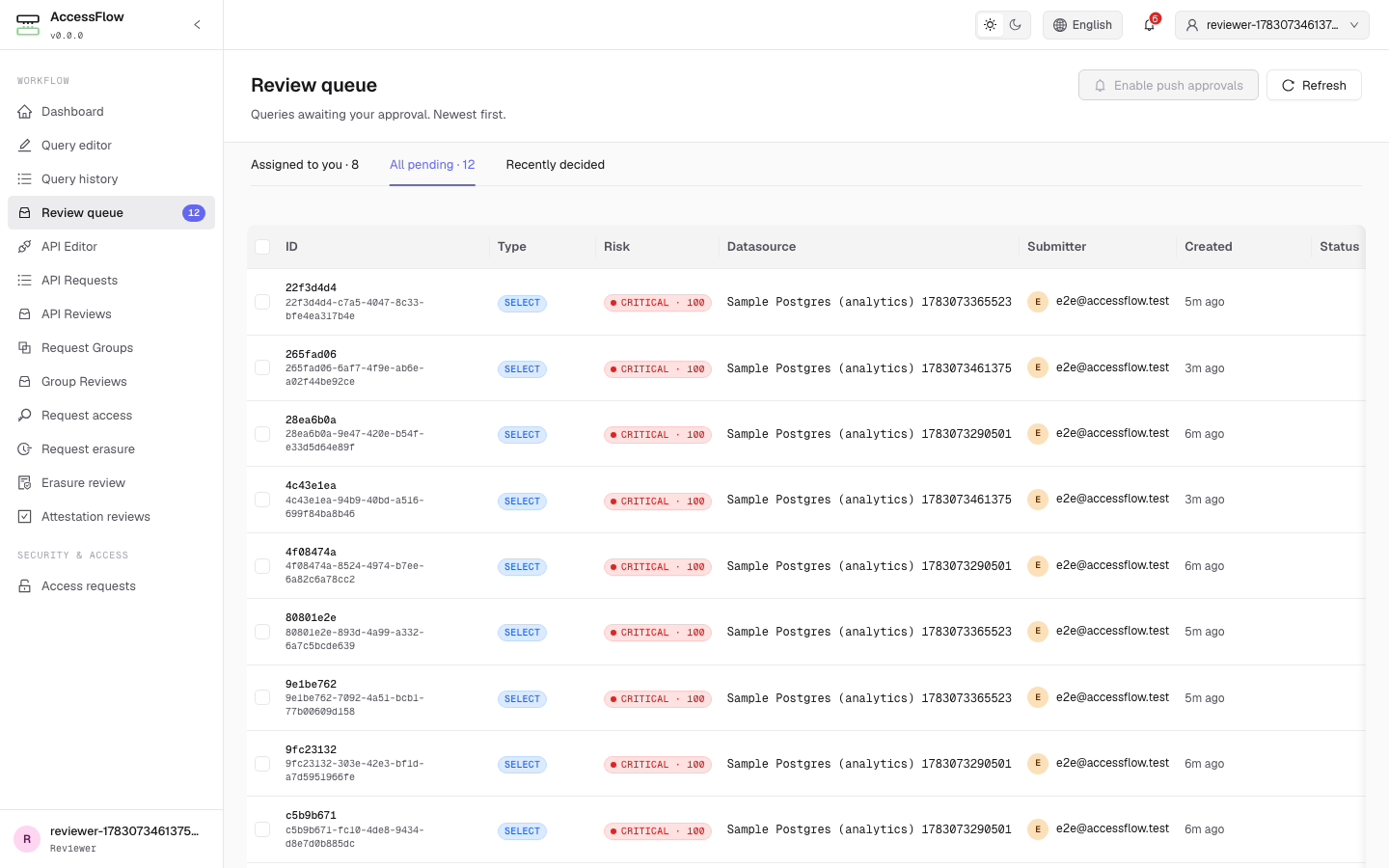
/reviews — reviewer queue, no rows selected.Selecting one or more rows surfaces a bulk-action bar with Approve selected, Reject selected, and Request changes — the same decisions available per row, but applied to every selected query in one round-trip. Reject and Request changes still require a comment for every query in the batch (the server enforces this; the UI prompts for each one inline before submitting).
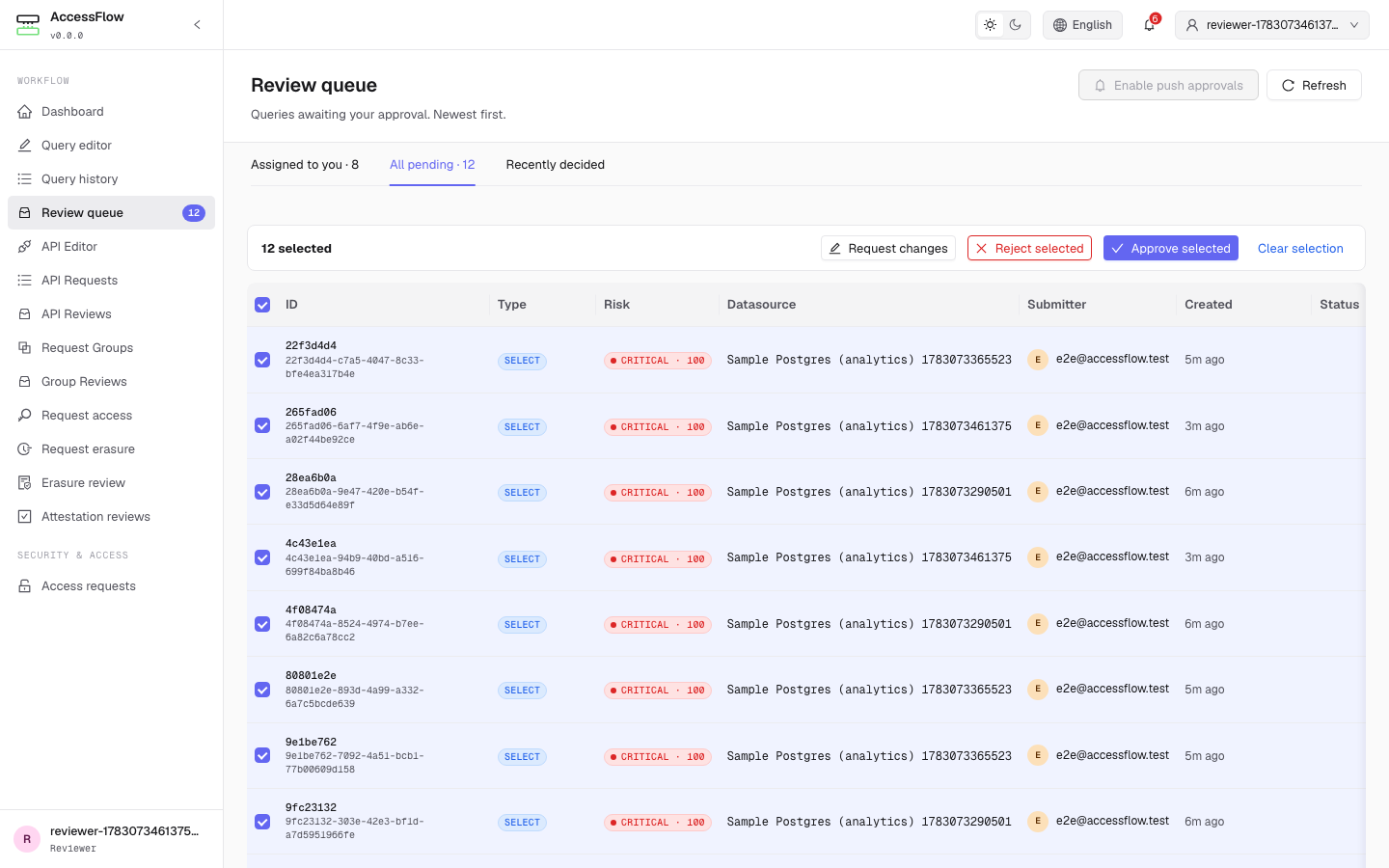
/reviews — bulk-action bar appears the moment a row is checked.Reviewers can never approve their own queries; the backend enforces this regardless of plan configuration, and self-submissions are filtered out of the queue before the page renders.
Mobile approvals & one-tap push
What it is. Approve or reject from your phone. Reviewers get a push notification the moment a query needs them and can act on it in one tap — without keeping a browser tab open. Install AccessFlow to your home screen and the review queue even works offline.
Configure it. A reviewer taps Enable push approvals on
/reviews and grants the browser notification permission. From then on each
review request arrives as a push notification with Approve and Reject
actions; tapping one opens a focused page showing the query and asks for a quick
re-verification — your password, or a TOTP code when 2FA is enrolled — before the decision
commits. A single tap never approves a query, and the "can't approve your own query" guard
is enforced server-side on every channel.
Tune it. Push works out of the box — a signing keypair is generated and
stored on first use (encrypted with ENCRYPTION_KEY). To pin your own, set
ACCESSFLOW_PUSH_VAPID_PUBLIC_KEY /
ACCESSFLOW_PUSH_VAPID_PRIVATE_KEY (raw base64url, e.g. from
web-push generate-vapid-keys) and a ACCESSFLOW_PUSH_VAPID_SUBJECT
contact URL. The re-verification token lifetime is
ACCESSFLOW_SECURITY_STEP_UP_TTL (default PT5M).
Comparing repeated runs
When the same submitter re-runs the same query against the same datasource,
AccessFlow links the new execution to its previous one. On the query detail page a
diff panel shows the change in rows_affected, returned row
count, and execution time versus the prior run — so reviewers and submitters can spot
when a query that used to touch a handful of rows suddenly affects thousands, or when
latency drifts. Matching uses a canonical form of the SQL (comments stripped,
whitespace collapsed, keywords upper-cased), so cosmetic reformatting still pairs the
runs. The first execution of a query simply shows no prior run to compare against.
Seeing why a query failed
When an approved query fails at execution, the detail page no longer shows only a red
Failed badge. An execution-result card surfaces the verbatim database error —
for example ERROR: invalid input value for enum query_status: "PENDING" —
alongside how long the attempt ran, and the same cause is echoed in the approval
timeline. The submitter, reviewers, and admins who can read the query see the real
reason, so a failed run can be debugged without digging through server logs.